


Why Can't I Sort My AOL Mail by Sender?
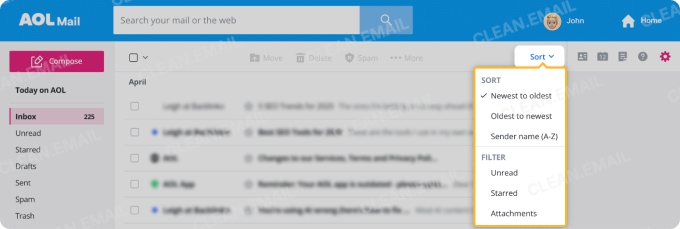
AOL Mail on the web has a Sort menu at the top right of your email list, but its options are limited to Date (newest or oldest on top), Unread, Read, Starred, and Attachments. There’s no option to sort by sender, so you aren’t missing a hidden button.

Why Doesn’t AOL Allow Sorting by Sender?
AOL hasn’t said why. The closest built-in options are searching AOL Mail for one sender at a time or filing each sender’s mail into a folder.
Workaround #1: Use Filters in AOL to Sort Mail by Sender
If you’re determined to stick with the basic web interface, then manual lifting is on the cards for you.
The key thing to remember is you can’t really "sort" the whole inbox instantly. But you can create filters to group incoming AOL mail from specific people into folders.
This method answers how do I sort my AOL mail by sender, but it only works for future emails unless you manually move old ones.
Steps to Create a Filter
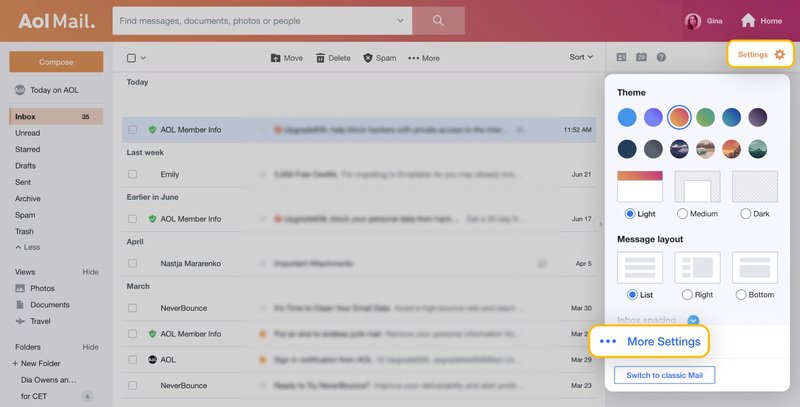
- Open AOL Mail and click the Settings gear icon in the top right corner.
- Select More Settings.
- Click on Filters in the left panel.
- Select + Add new filters.
- Enter a filter name, then set the From rule to contain the sender’s email address.
- Choose an existing folder or create a new one (e.g., "Family" or "Work").
- Click Save.
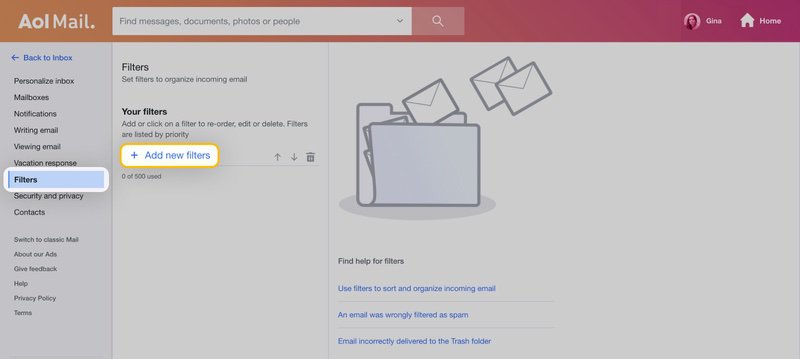
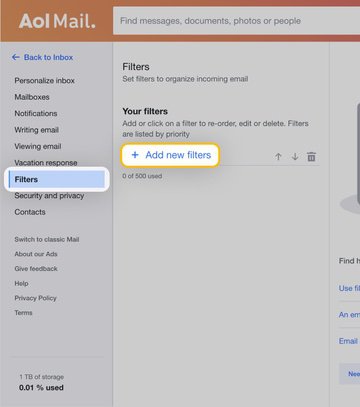
⚠️ Look, this isn't really sorting — it’s filing. It requires you to know exactly who you want to sort beforehand. If you have hundreds of different senders, this method is too slow to be practical.
Workaround #2: Search by Sender in the AOL App
In the AOL app, AOL’s own answer to sorting by sender is a sender search that lists every message from one person:
- Open the emails tab in the AOL app.
- Tap the Search icon.
- Enter the sender’s email username or contact name.
- Tap the sender’s email address or username.
This shows one sender at a time; it doesn’t reorder your inbox.
Workaround #3: Use AOL Desktop Gold
If AOL mail won't sort by sender on the web, AOL’s solution is often to upsell you to AOL Desktop Gold. This is their paid all-in-one software that mimics the older, classic AOL experience.
AOL’s current help for Desktop Gold doesn’t describe sorting the mailbox by sender. What it does document is mail filters that match a sender’s email address and move those messages to a folder you choose — the same filing approach as on the web.
📌 Is it worth it? Desktop Gold is a paid monthly subscription, and its documented sender tool is a filter you can also create for free in AOL Mail on the web.
Is There a Better Alternative? Try Clean Email
Workarounds exist. But who’s got the time to create fifty different manual filters or pay for legacy software just to organize your inbox?
Luckily, tools can make life heaps easier.
Even after scouring the internet for solution, we think that the most efficient answer to knowing how to sort AOL emails by sender is to use a third-party email organizer like Clean Email.
Clean Email can connect to your AOL account and provides the interface and intelligence that AOL lacks. It doesn’t just sort; it groups, cleans, and organizes automatically.
Grouping emails by sender automatically
The word “automatically” should make your day here. Unlike AOL’s web interface, Clean Email isn’t bound by a chronological list only. By default, its Smart Folders organize your emails into logical bundles, “folders” that group senders matching similar criteria and allow you to review, manage, and clean messages in bulk with minimal effort.


There, you can see the total number of messages per sender and select an entire bundle to take bulk actions with a single click, for instance, deleting hundreds of emails at once.


But specifically for sorting, it has a dedicated view that solves your problem instantly.
Finding Senders and Performing Bulk Actions with "Senders"
Clean Email includes a specific tool called Senders. Here is how it works:
- Log in to Clean Email with your AOL account.
- Navigate to the Senders tab on the left sidebar.
- The app instantly analyzes your entire inbox and groups every single email by the person or service who sent it.
- You see a list of senders (e.g., "Amazon," "Mom," "Netflix") along with the total number of emails from them and sort the list according to your preference.

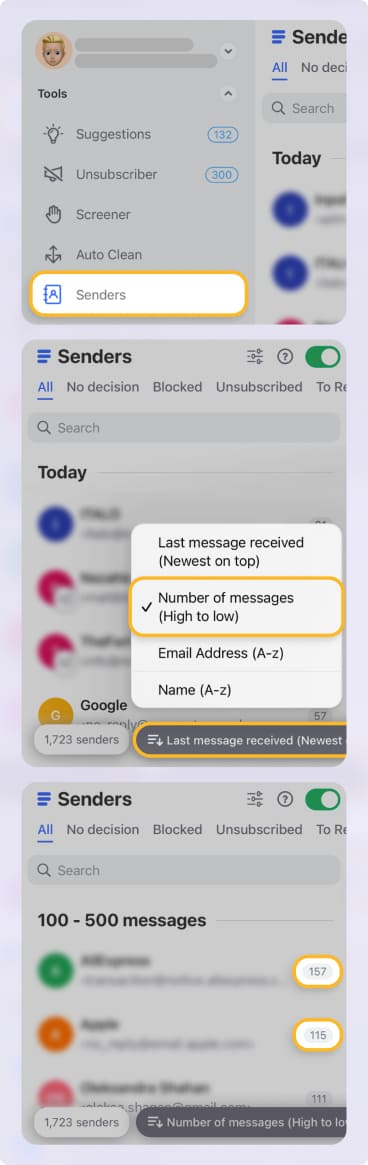
You can now click on any sender to view all their messages in one place. You can also take bulk actions — like unsubscribing and deleting all emails from a specific newsletter, creating a rule, or muting every message from a specific contact — in a click!
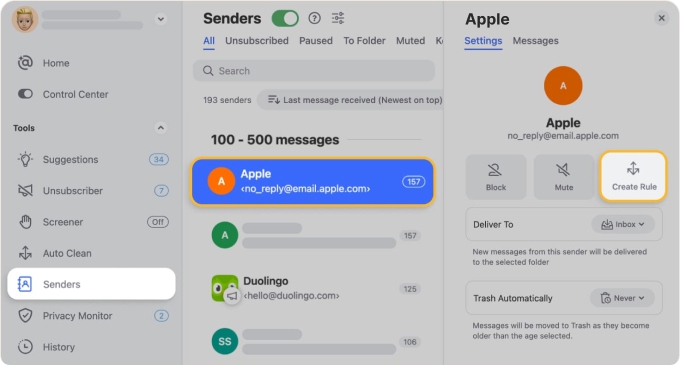
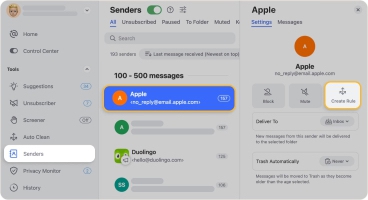
There’s no more need for a filter or pay for AOL premium when you can do it all in seconds!
Using Clean Email Across All Email Providers
This isn't just for AOL. If you are juggling an iCloud account for your iPhone, a Gmail account for work, and an AOL account for personal use, Clean Email manages them all. It unifies your digital life so you don’t have to learn different interfaces for different accounts.


Told you, this tool can make life a million times easier!
Enjoying Privacy and Security
Security is paramount. AOL is far from unsecured, but the protection it has is pretty basic.
Clean Email is safe; it does not sell your data. It analyzes email headers to organize your mailbox, but it doesn’t read your content. It’s a secure, privacy-first way to fix the AOL sort by sender limitation without compromising your data.
No Tech Skills Needed
You don’t need to be an IT expert to make things work. There are no complex server settings or POP3 configurations to worry about. You sign in on any device, such as your Mac desktop, iPhone, Android device, or any web browser, and it instantly works.


What we’re trying to say is that while Clean Email can solve the problem in question for you, it can also do so much more!
Common Problems and Fixes
📌 Why is my AOL not displaying sort options even in Classic mode?
Older guides that tell you to switch to a "Classic" or Basic view are out of date: AOL’s help no longer documents a way to switch, and the current Sort menu has no sender option. The most reliable fix is using an app like Clean Email that supports sorting natively.
📌 Why are my AOL filters not working properly?
Filters apply only to new incoming mail, so messages already in your inbox stay put until you move them. And if two filters match the same email, AOL applies the one higher in your filter list; reorder them with the up and down arrows.
Final Thoughts
While you can patch the problem with manual filters or expensive software subscriptions, those solutions demand more of your time and money. The goal is a clean inbox, not a second job managing it.
Tools like Clean Email offer the modern, automated solution you need. They give you the power to view your inbox exactly how you want — grouped by sender, size, or date — without fighting against the interface.
Automate the chaos and get your time back. Try Clean Email today.












