


Why You Shouldn’t Open Spam Emails
Opening spam can expose your data through tracking pixels and put your device at risk from malware or phishing links.
Tracking pixels tell the sender that you have an active email account, which normally leads to even more spam and unwanted messages from them.
Along with triggers like tracking pixels, spam can include:
- Malware or viruses attached to messages
- Indicators revealing your location, device type, and IP address
- Tricks for gathering your personal data (phishing)
- Links to malicious websites (many times using their own Unsubscribe links)
To stay safe, it’s best to rid your inbox of spam without accessing the emails, and we’ll show you a few ways that you can do this.

1. Unsubscribe From Emails Without Opening Them
Unsubscribing from spam is risky. It’s reserved for legitimate messages like newsletters or promotional emails that you allowed into your mailbox at one time but no longer want to receive.
On top of that, it can be difficult to unsubscribe from emails without opening them. In most providers the Unsubscribe button can be found only inside the opened email.
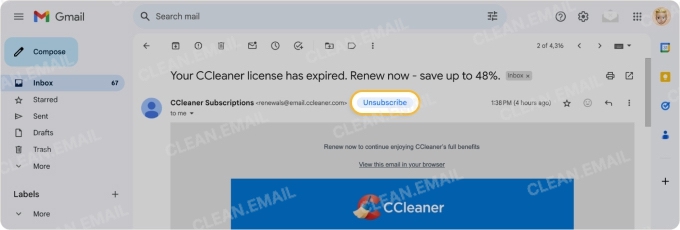
Some providers, like Gmail and Outlook, offer a subscription management option, but you still can't preview email content before making a decision.
📌 With Clean Email, you can preview messages from unknown senders without actually opening them and then choose to unsubscribe, block, or let them through.
Unsubscribe Safely With Clean Email
Most unsubscribe links are buried in the email footer, and clicking them means opening the message first. The app lets you handle it differently.
With its Unsubscriber feature, you can:
- Unsubscribe without opening emails or clicking risky links inside the message.
- Mass unsubscribe in one go by selecting multiple senders and removing them all at once.
- Pause subscription or choose to only Keep Newest while staying subscribed to keep your inbox clean without configuring any filters.
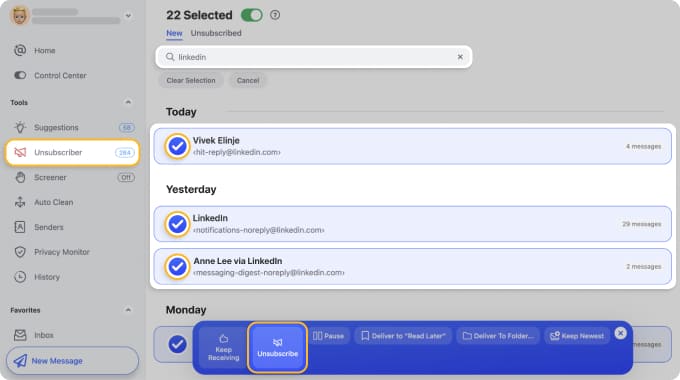
To use the tool, open Clean Email on your desktop or mobile device and choose Unsubscriber in the menu. Then, just select Unsubscribe next to the message. That’s it!
This action sends the removal request to the sender and blocks them at the same time, making it a safe way to unsubscribe from spam and other unwanted emails.
2. Report Spam
Select one or more messages using checkboxes, then click Report Spam in the toolbar. Works in Gmail, Outlook, and Yahoo Mail without opening the email.
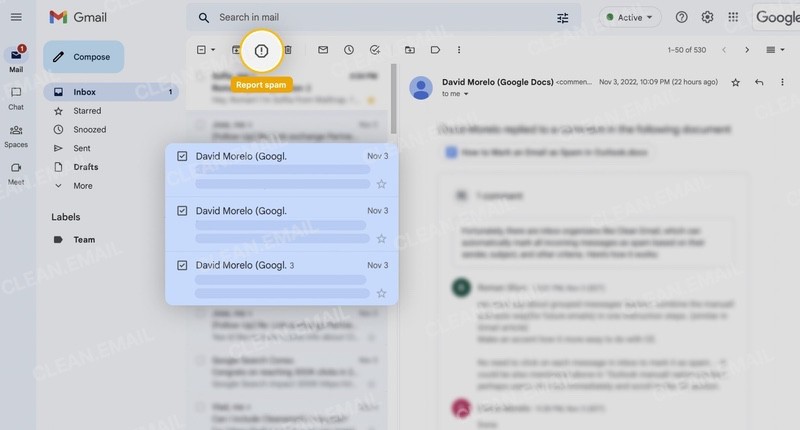
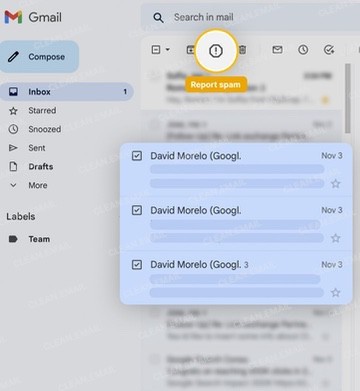
Reporting spam or phishing is one of the best ways to stop it from continually invading your inbox. While there’s no guarantee that the sender will avoid emailing you in the future, this action does mean that those additional messages will go to your Junk or Spam folder rather than your inbox.
Reporting spam also sends feedback to your email provider that the messages are unsolicited, which can affect that sender’s spam score.
3. Block Emails
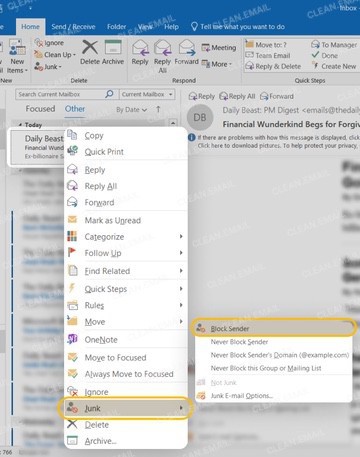
In Outlook, right-click a message and select Block Sender. Future emails will go to Junk folder automatically.
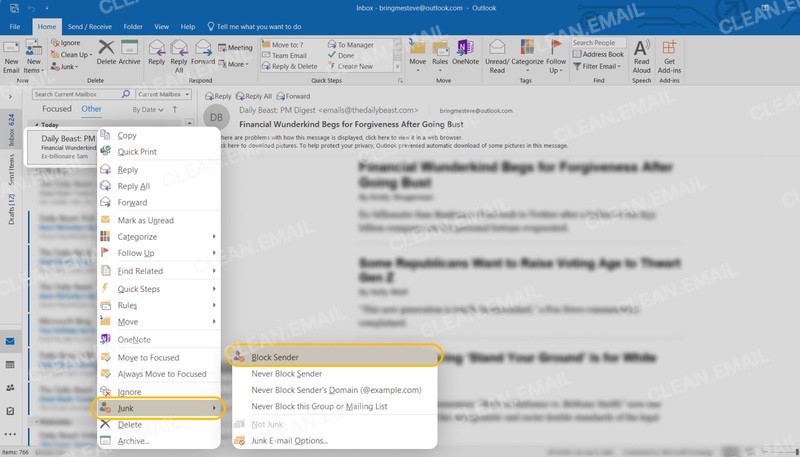
💡 Note that blocking doesn’t send feedback as spam to the email service, and you can easily unblock a sender later if you change your mind.
In Gmail, you can't block without opening the email, but you can use Clean Email's Screener feature to Block or Unsubscribe with a single click!
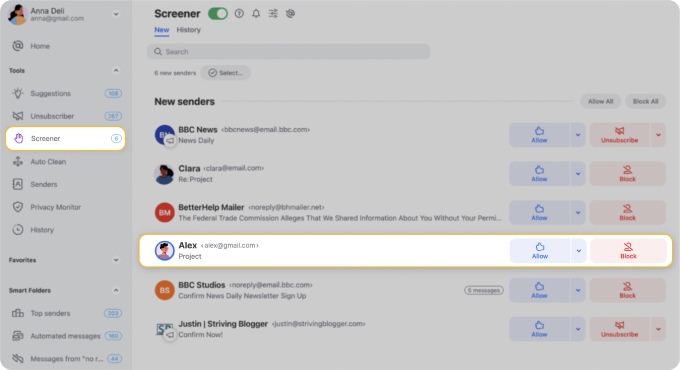
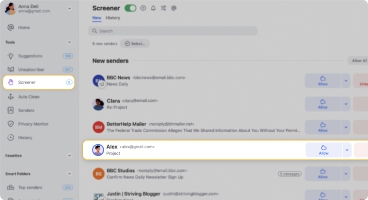
Not only does Screener let you block or unsubscribe without accessing emails, but it also gives you the option to Allow future messages from those unknown senders that are actually legitimate for a better way to manage messages from new senders.
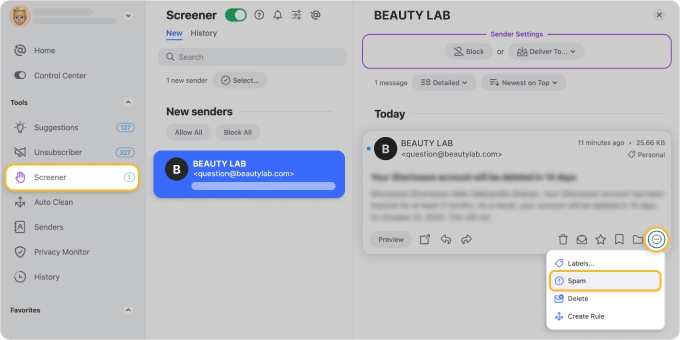
You can also preview the message and mark it as spam straight from the app.
4. Automate Spam Removal For Unopened Emails
One more option to consider, especially if you’re receiving a lot of spam, is to automate removing it. This lets you get rid of junk email without viewing it and effortlessly manage those unwanted messages behind the scenes.
While Gmail provides filters to automatically handle incoming messages, it doesn’t provide a “mark as spam” option. And even though Outlook does offer this action, the conditions for rules can feel limited, and you can’t set up rules in the Outlook mobile app.
Conclusion
Opening spam messages can trigger tracking pixels, expose you to phishing attempts, or lead to harmful links and attachments.
Instead, using tools like reporting spam, blocking senders, and setting up automatic filters can help reduce unwanted messages. These methods make it easier to keep your inbox organized while also improving your overall email security.












