


How To Change Your Gmail Password on Computer
These steps work in any browser (Chrome, Safari, Firefox, Edge):
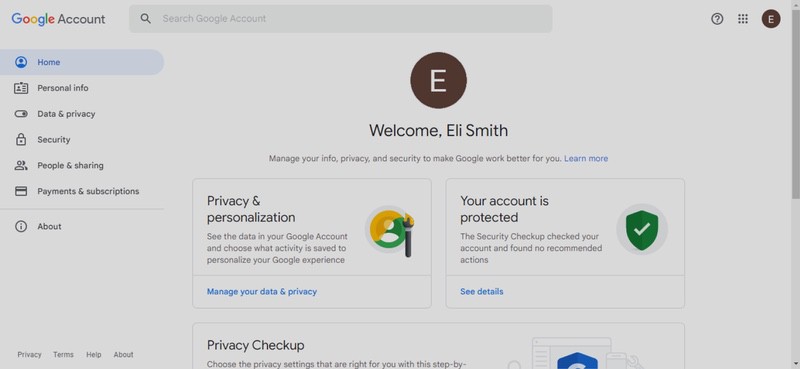
- Access your Google Account
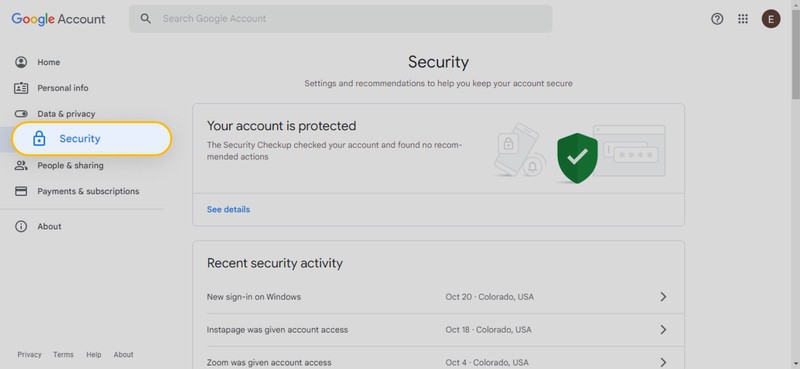
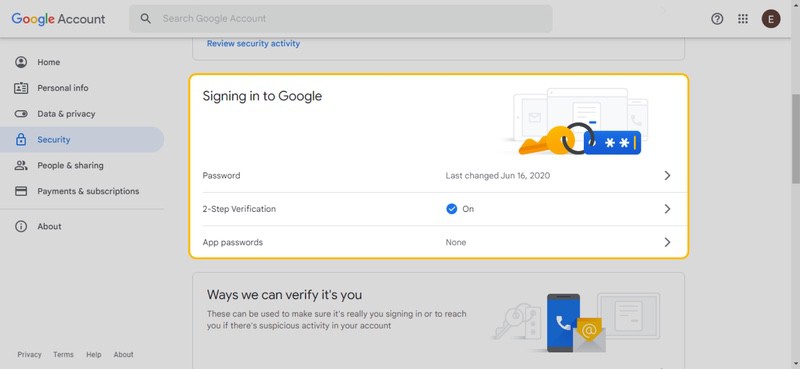
- Click Security.
- Scroll down until you find the "Signing in to Google" heading.
- Select Password, re-enter your credentials, and enter a new one.
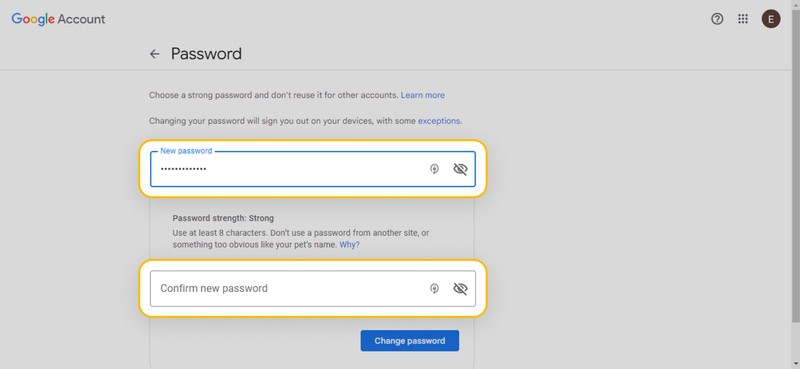
Once you click the Change password button, you will have officially changed your login credentials.

How To Change Your Gmail Password on iPhone & iPad
Open the Gmail app on your iPhone or iPad and follow these steps:
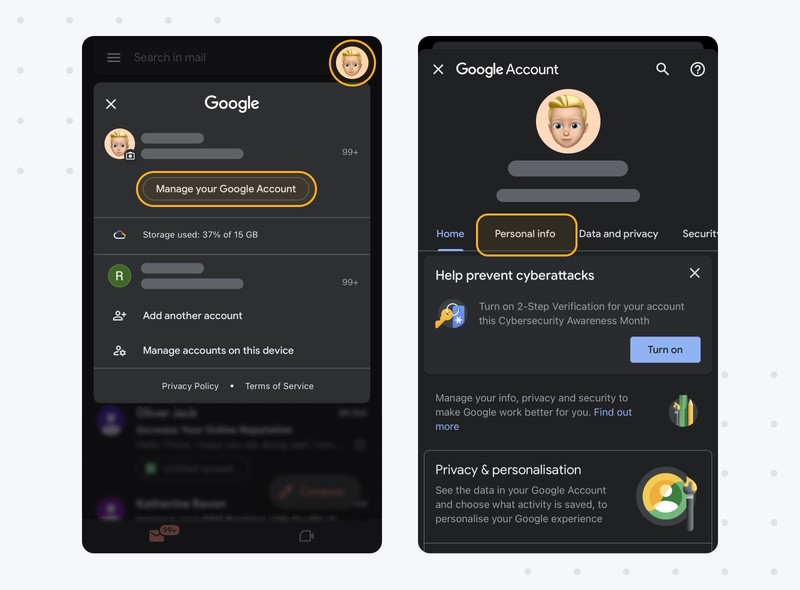
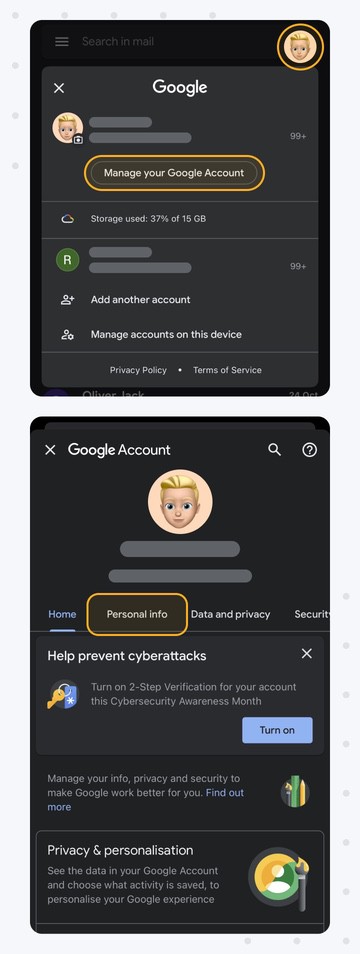
- Access your Gmail app from your iPhone or iPad (both will use the same Apple App Store), and tap your profile picture → Manage your Google Account.
- Then tap Personal Info.
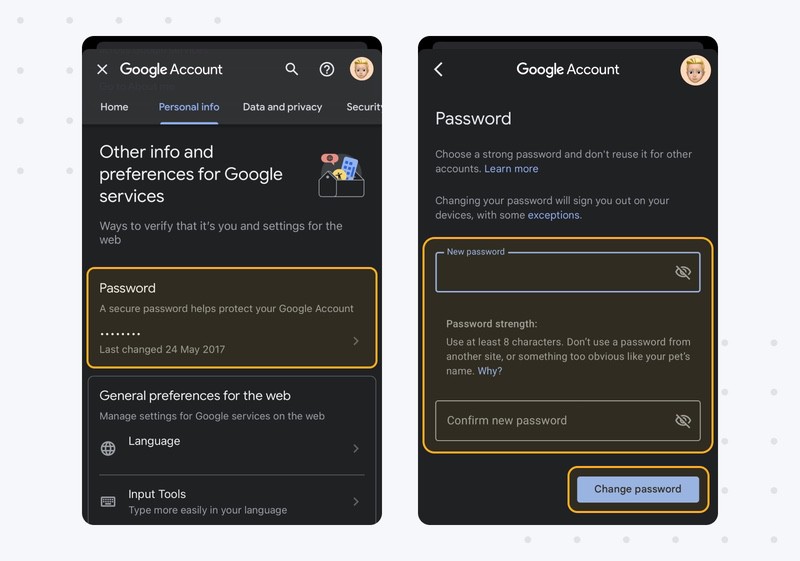
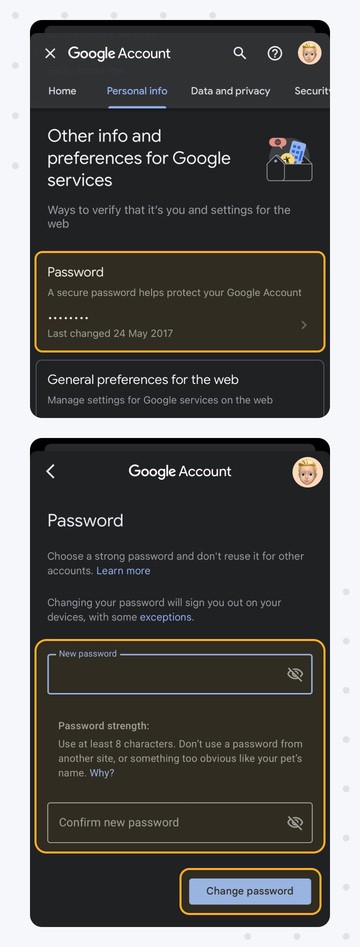
- Find and tap the Password link (you might need to re-enter your old credentials).
- Enter your new credentials and tap the Change password button.
If you are having trouble with your phone app, use the steps above for changing from your computer. The mobile browser is identical for both Google and iPhone users, as they are both accessing the same URL.
How To Change Your Gmail Password on Android
If you have the Gmail app installed from the Google Play Store:
- Go to your device settings, scroll down, and tap Google.
- Tap Manage your Google Account.
- Scroll to the right on the top navigation bar until you find Security.
- Scroll down a bit and tap Password.
- Enter your old credentials to access the account, then enter your new ones and tap Change password.
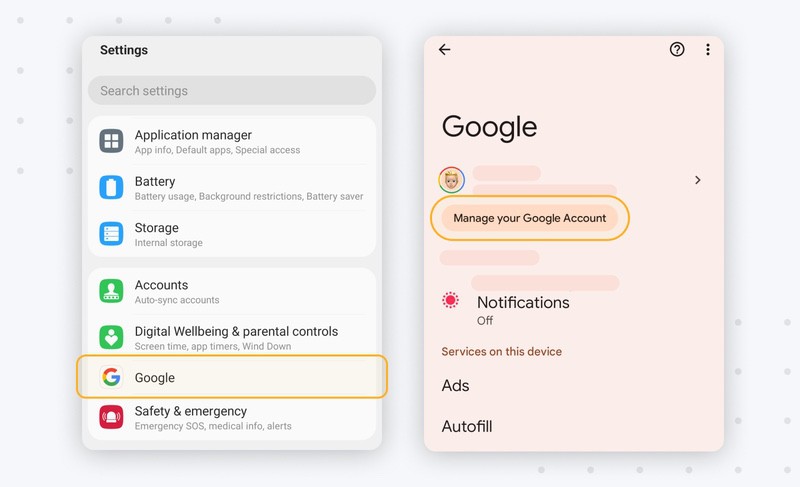
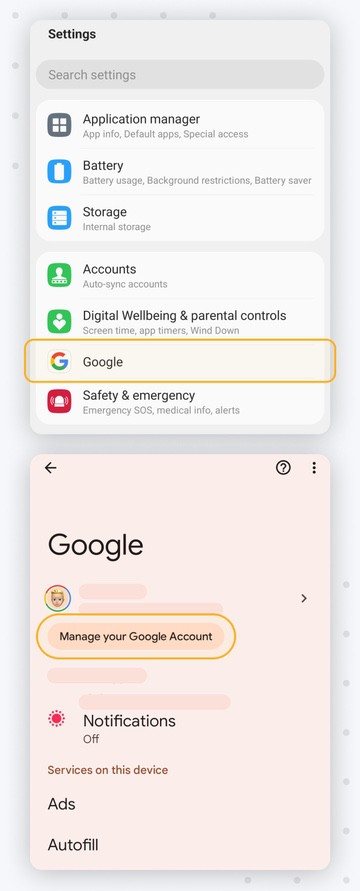
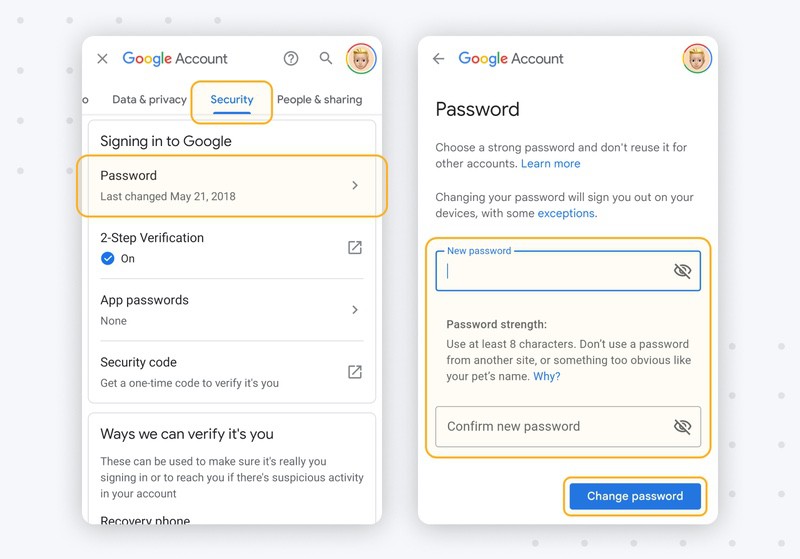
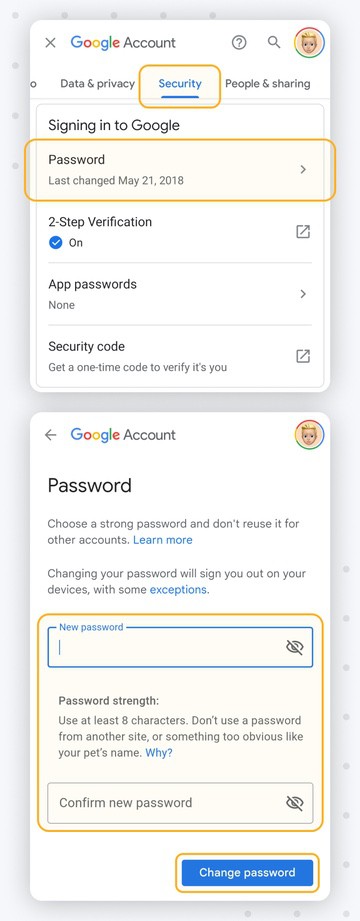
The interface here is identical to using your mobile browser. So, if you are having trouble accessing the application, go to your account management on the Google website.
What If I Forgot My Gmail Password?
You'll need to go through the simple account recovery process if you forget your Gmail credentials. Thankfully, Google has numerous ways to recover your Gmail information.
Typically, you'll need some form of backup to verify account ownership. Backups include your phone, another email address, or the Google Authenticator app. Having more backup options will make your account easier to access and more secure.
For a complete guide, check out this link on how to reset a forgotten Gmail password. If you are looking for another way to protect your account data, our next section is for you.
Keep Your Gmail Inbox Secure and Clean
It's a good idea to change your password often, but it's also important to keep your inbox clean for security. With Clean Email, you can automatically remove old unwanted messages and unsubscribe from spammy newsletters to reduce your exposure to phishing.
To get started, open Clean Email and choose Privacy Monitor from the menu. It will let you know when your email address is found in known data breaches, so you know when to change your passwords.
Screener catches emails from new, unknown senders before they get to your inbox. This helps you avoid phishing attempts.
FAQ
What happens after you reset your password?
After resetting your Google credentials, you'll automatically be logged out of all accounts and devices. You might also need to reconnect your Google account to third-party apps and devices with regular account access. This automatic removal ensures that any hacker that could have access is automatically removed.
How often do I need to change my Gmail password?
Google has no strict rulebook on how often you should change this. However, security experts say it's best to change your password every 90 days (three months). You might change your password monthly if you work in a high-risk profession. But for most people, every three months is ideal.
What do you do if your Gmail account is blocked?
If your Google account is blocked, you'll need to unblock and restore the account to access your Gmail. If the Google account has been suspended more than five times, you won't be able to reactivate it. In some cases, you might get a notification to your backup email. If you still have issues, contact Google customer support.
What to do if your Gmail account is hacked?
If your Google account is compromised, you'll need to start by getting in and changing your password immediately. Next, immediately check the current account data to ensure no unwanted recovery emails or phone numbers. Finally, add an extra layer of security to your account by adding a new recovery email or phone number. You might also check if you are connected to unwanted third-party apps.












