各プラットフォームで最も簡単な方法
以下では、各サービスで最も簡単な方法に加えて、ドメイン全体をブロックする方法や、Clean Email を使ってすべてのアカウントの不要なメールを管理する方法をご紹介します。
| プロバイダー | ブロックしたメールの移動先 | アドレスの上限 | ドメインのブロック | 詳細ガイド |
|---|---|---|---|---|
| Gmail | 迷惑メールフォルダ | 上限なし | 可 — フィルタで | Gmail でブロック |
| Outlook/Hotmail | 迷惑メールフォルダー | 1,024 アドレス | 可 — 迷惑メール設定で | Outlook でブロック |
| Yahoo | 迷惑メールフォルダー | 500 アドレス | 標準機能では非対応 | Yahoo でブロック |
| Apple Mail(Mac) | ゴミ箱またはマーク付け | 上限なし | iCloud.com のルールで | Mac でブロック |
| Apple Mail(iPhone) | 迷惑メールフォルダ | 上限なし | iCloud.com のルールで | iPhone でブロック |
| iCloud.com | ゴミ箱(サーバー側) | 上限なし | 標準機能では非対応 | iCloud でブロック |
| AOL | 迷惑メールフォルダー | 1,000 フィルター | 対応 | AOL でブロック |
| Android(Gmail アプリ) | 迷惑メールフォルダ | 上限なし | Gmail フィルタで | Android でブロック |

Gmail でメールをブロックする
Gmail は受信メールをうまく分類し、迷惑メールを迷惑メールフォルダに移動してくれますが、それでも一部の不要なメールは通り抜けてしまいます。
Gmail で特定の相手をブロックするには、その送信者からのメッセージを開き、その他(返信ボタンの横にある縦三点メニュー)をクリックし、[送信者名] をブロックを選択します。Gmail が確認を求めてくるので、ブロックをクリックすると、そのアドレスからの今後のメッセージはすべて直接迷惑メールフォルダに振り分けられます。
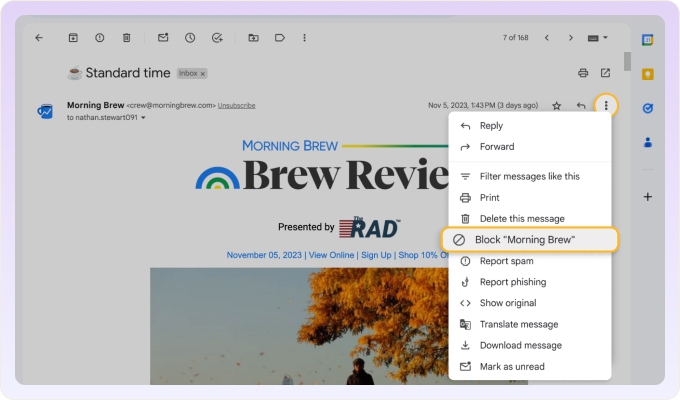
Android と iPhone のいずれでも、Gmail モバイルアプリでの手順は同じです。メールを開き、三点メニューをタップして、ブロックをタップします。なお、Android で Gmail ではなく Samsung Email アプリを使用している場合は手順が異なります。詳しくは上の表にある Android の詳細ガイドをご覧ください。
もしGmail で送信者のブロックを解除したい場合は、その連絡先からの任意のメッセージを開き、その他をクリックして、[送信者名] のブロックを解除を選択します。また、設定 → フィルタとブロック中のアドレスから、ブロックリスト全体を管理することもできます。
スパム送信者の厄介な点は、次々と新しいアドレスを作り出すことが多く、その都度一つずつブロックしなければならないことです。Gmail ではフィルタを使ってドメイン全体をブロックできます。これについては下のドメインブロックのセクションで説明します。
Outlook でメールアドレスをブロックする
Outlook には、不要なメールを止めるための分かりやすい方法が用意されています。Web 版の Outlook でメールをブロックするには、受信トレイに移動し、ブロックしたい送信者のメールを選択して、上部のツールバーにあるその他の操作(三点メニュー)をクリックし、ブロックをクリックして、OKを押して確定します。
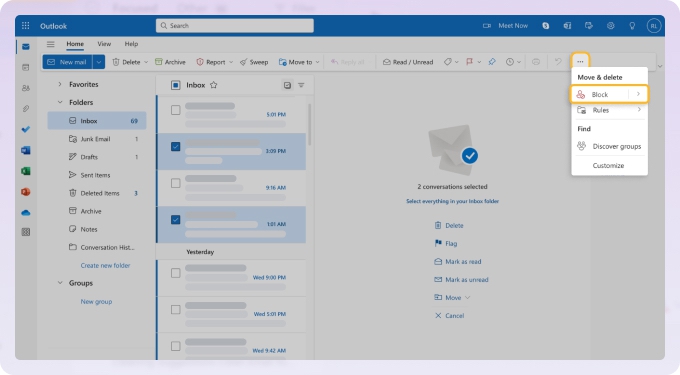
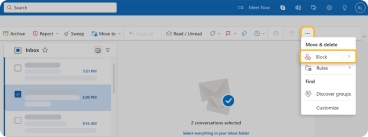
ブロックした送信者のリストを管理したり、Outlook でブロックを解除したりするには、設定の歯車アイコンをクリックし、メールを選択して迷惑メールに移動し、送信者やドメインを追加または削除します。
Outlook にはブロックできるアドレスが 1,024 件までという上限があります。この上限に達している場合は、より確実にフィルタリングできる Outlook のルールを使うか、上限なしでブロックを処理できる Clean Email のようなツールを使いましょう。
Outlook モバイルアプリでも、送信者を個別にブロックできます。
Hotmail をお使いの方へ:Hotmail は現在 Outlook.com になっているため、同じ手順が適用されます。
Yahoo でメールをブロックする
Yahoo では最大 500 件のアドレスをブロックできます。アドレスをブロックすると、そのアドレスからのメッセージはすべて自動的に迷惑メールフォルダーに移動します。
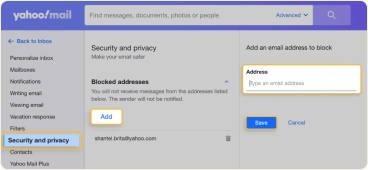
Yahoo でメールをブロックするには、設定アイコンにカーソルを合わせてその他の設定を選択し、セキュリティとプライバシーに移動して、ブロックしたアドレスの横にある追加をクリックし、アドレスを入力して保存をクリックします。
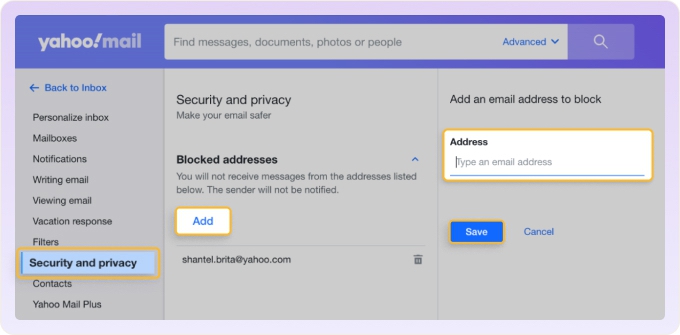
Yahoo でメールアドレスのブロックを解除するには、ブロックしたアドレスのセクションに戻って送信者を削除します。
💡 注意:Yahoo モバイルアプリには直接ブロックするオプションがありません。代わりに、不要なメッセージを選択してその他をタップし、迷惑メールに登録を選択します。モバイルで完全にブロックするには、デスクトップ版サイトを使うか、スマートフォンのブラウザで Yahoo メールを開いてください。
Apple Mail でメールアドレスをブロックする
Apple Mail をメールクライアントとしてお使いの場合、Mac と iPhone のどちらでも送信者をブロックできます。ブロックの動作は方法によって異なるため、自分の状況に合った方法を知っておくとよいでしょう。
Mac の場合:メールアプリを開き、ブロックしたい送信者からのメッセージを選択し、メッセージのヘッダーにある送信者名の上にマウスポインタを合わせて、連絡先をブロックを選択します。その送信者名の横にブロックアイコンが表示されます。
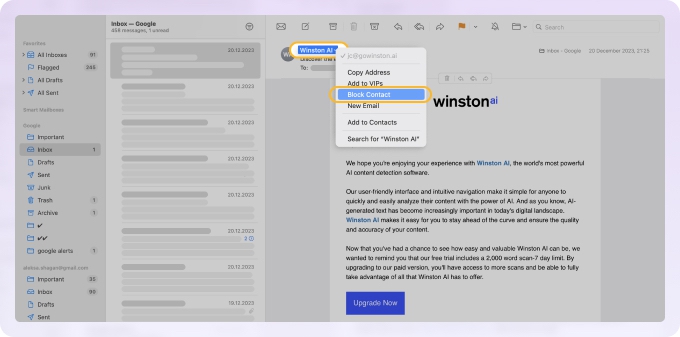
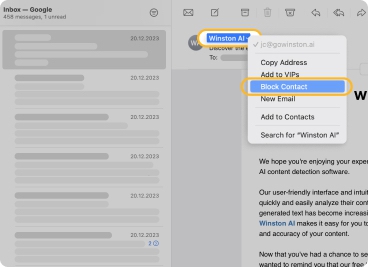
右クリックのショートカットや設定を使った方法については、上の表にある「Mac でブロック」のリンクをご利用ください。
iPhone と iPad の場合:メールを開き、上部の送信者名をタップし、もう一度タップして詳細を表示してから、この連絡先をブロックを選択します。また、受信トレイでメールを長押しして送信者をブロックを選択すると、メッセージを開かずにブロックすることもできます。
ブロックを解除するには、設定 → メール → 指定した差出人に移動します。
iCloud.com の場合:Web 版にはワンクリックでブロックできるボタンはありません。代わりに、設定 → ルール → 新規ルールを追加に移動し、「送信元」を送信者のアドレスに設定してゴミ箱に移動を選択し、追加をクリックします。これにより、すべての Apple デバイスに自動的に適用されるサーバー側のルールが作成されます。
Clean Email ですべてのアカウントのメールをブロックする
複数のメールアカウントを管理している場合、あるいは標準のプロバイダーのブロック機能ではすべてを止めきれない場合、Clean Email アプリには個々のメールサービスにはない機能が備わっています。
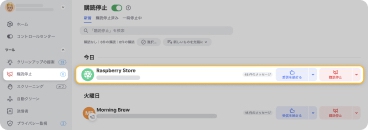
Screener:不明な送信者からのメールが受信トレイに届く前に、Screener はそれを別の確認用キューに保留します。誰があなたに連絡しようとしているのかを確認し、受け入れたい相手を承認して、それ以外をブロックできます。ブロックした送信者からの今後のメッセージは、直接ゴミ箱に振り分けられます。
受動的なブロック(メールが届いてから対応する方法)とは異なり、Screener は不明な送信者がそもそも受信トレイに触れることを未然に防ぎます。
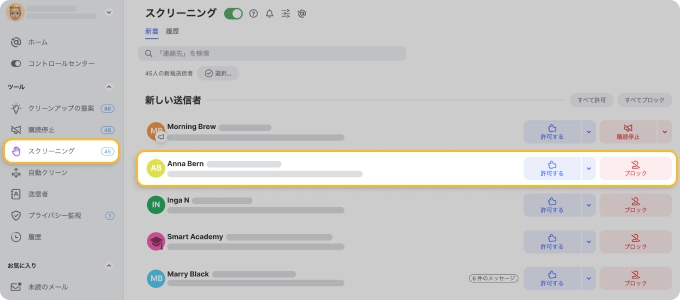
ドメインのブロック:Clean Email はスパム送信者(またはそのドメイン全体)をブロックし、今後のメールを直接ゴミ箱に振り分けます。また、メールルールにカスタムフィルタを追加し、それを既存のメールに適用して受信トレイを整理することもできます。
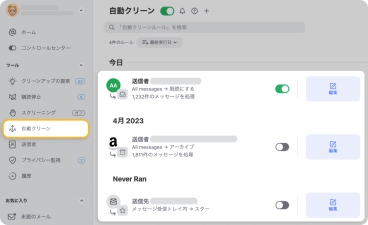
Senders による一括ブロック:送信者を一人ずつブロックするために個々のメールを開く代わりに、Senders ビューではすべての送信者を一つのリストにまとめて表示します。送信頻度の高い相手を基準に、確認、ブロック、一時停止、配信停止などを行えます。さらに、別々のタブで、ブロック済み、配信停止済み、一時停止中、ミュート中の送信者を確認し、そこから管理できます。
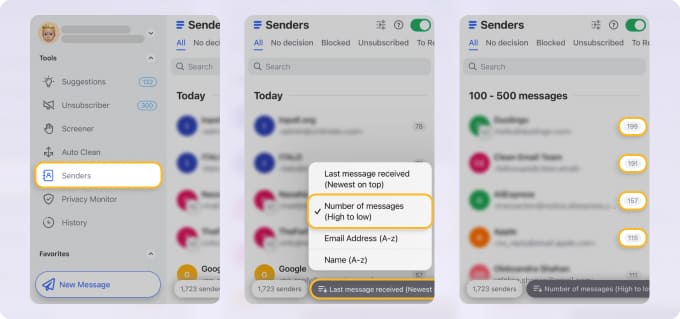
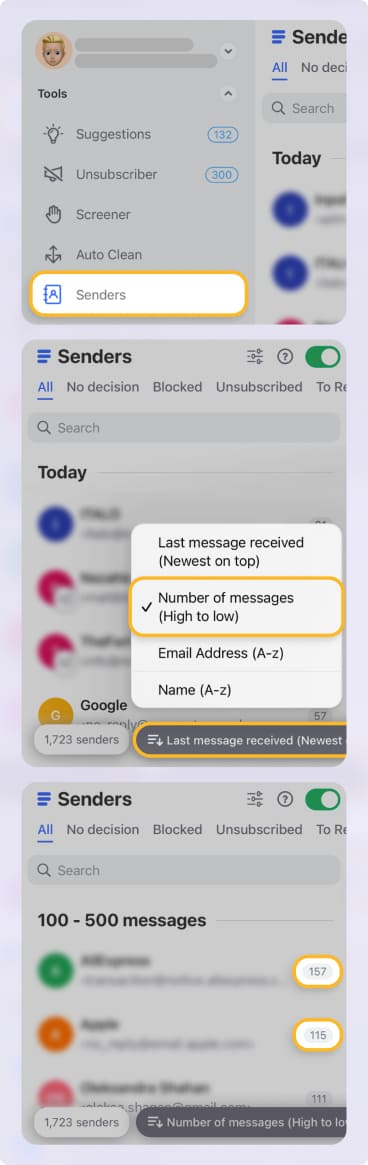
Clean Email にはアドレスの上限もありません。Outlook(1,024 件)、Yahoo(500 件)、AOL(1,000 フィルター)とは異なり、ブロックできる件数に上限はありません。
あなたの情報は Clean Email で安全に保護されます。アプリが確認するのはメールのヘッダー情報(件名、送信者、受信者、サイズ、日付)のみです。メッセージの本文や添付ファイルがダウンロードされたりアクセスされたりすることは一切ありません。あなたのデータは暗号化され、外部に共有されることはありません。
Clean Email はWeb アプリとして利用できるほか、iPhone、Android、Mac 向けのアプリも提供しています。
その他のプロバイダーでメールをブロックする方法
AOL の場合
AOL は受信メッセージを自動的にスキャンしてフィルタリングしますが、それでも一部のスパムは通り抜けてしまいます。Web ブラウザで AOL のメールをブロックするには、設定の歯車アイコンをクリックし、その他の設定を選択して、セキュリティとプライバシーに移動し、ブロックしたアドレスの横にある追加をクリックして、アドレスを入力し、保存を押します。
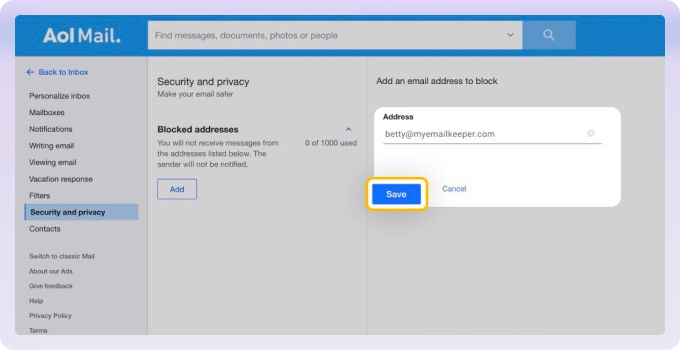
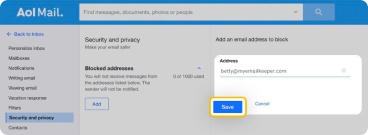
AOL では最大 1,000 個のフィルターを作成できます。AOL モバイルアプリには組み込みのブロック機能はありませんが、代わりにメッセージを迷惑メールとしてマークできます。
Proton Mail の場合
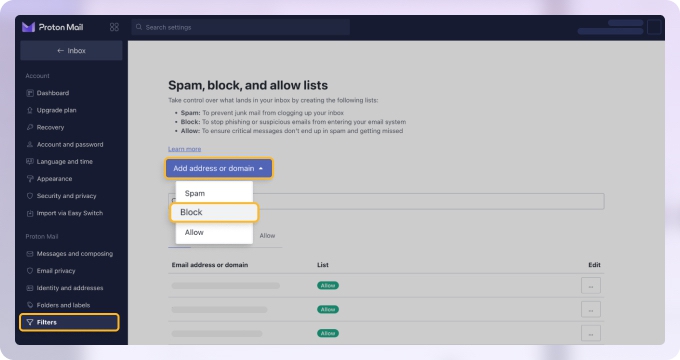
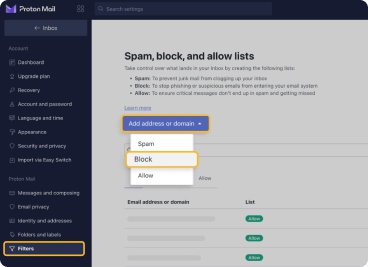
Proton Mail はスマートなスパム検出システムを使用していますが、それでも迷惑メールが通り抜けてしまうことがあります。送信者をブロックするには、設定の歯車アイコン → すべての設定 → フィルター → スパム、ブロック、許可リストまでスクロール → アドレスまたはドメインを追加をクリック → ブロックを選択します。送信者のアドレスまたはドメインを入力して、アドレスを追加をクリックします。
Zoho Mail の場合
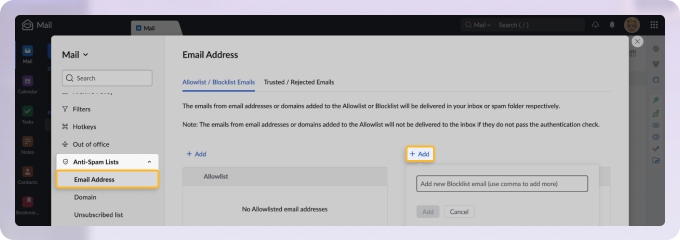
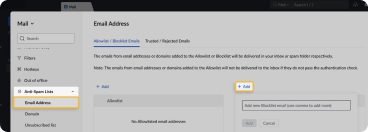
Zoho Mail のスパム対策リストを使って、特定のアドレスやドメイン全体をブロックできます。設定の歯車アイコン → スパム対策リスト → メールアドレスまたはドメインを選択 → ブロックリストフィールドの上にある追加をクリックし、アドレスまたはドメインを入力して、追加をクリックします。
GMX と Mail.com の場合
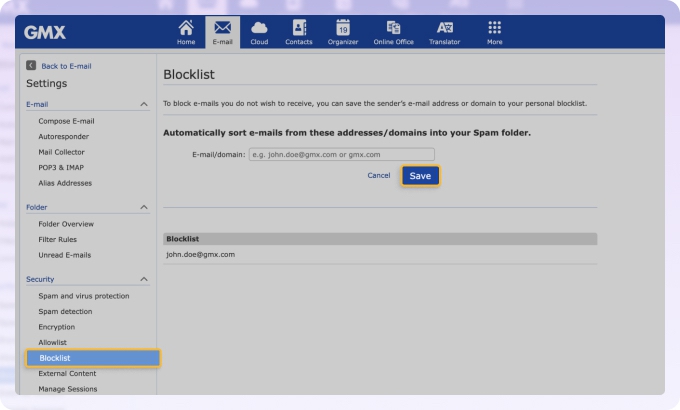
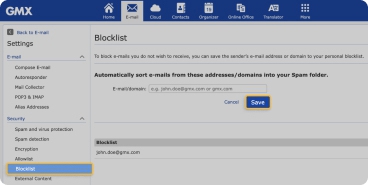
GMX と Mail.com はどちらも同じインターフェースを使用しています。メール設定 → ブロックリストに移動し、メールアドレスまたはドメイン名を入力して、保存をクリックします。どちらもアドレス単位とドメイン単位のブロックに対応しています。
Thunderbird をお使いの方は、Thunderbird で送信者をブロックするガイドをご覧ください。
ドメイン全体をブロックする方法
単一のアドレスをブロックする方法は、既知の送信者には有効ですが、スパム送信者はしばしばランダムに新しいアドレスを次々と作り出します。あるドメイン全体(例:@spammydomain.com)からのすべてのメールを止めるには、ドメイン単位のブロックが必要です。
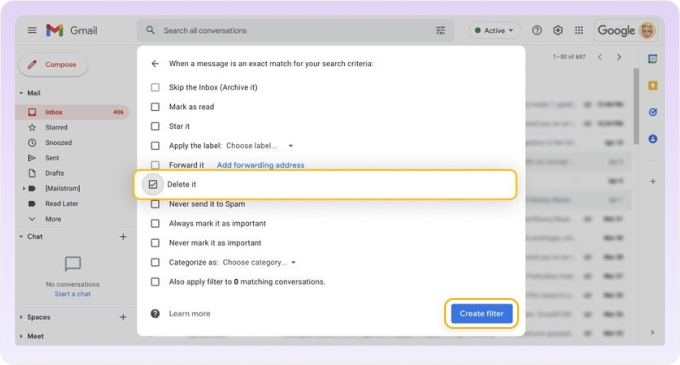
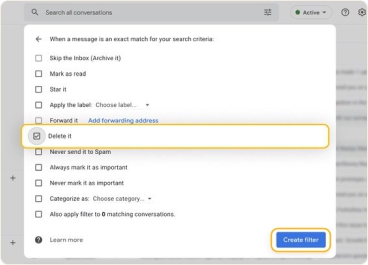
Gmail の場合:検索バーの検索オプションを表示をクリックし、From の欄にドメインを入力して、フィルタを作成をクリックし、削除するを選択して、フィルタを作成をクリックします。そのドメインからのすべてのメールが自動的に削除されます。
Outlook の場合:設定 → メール → 迷惑メール → ブロックする差出人とドメインに移動し、ドメインを追加します。また、そのドメインからのメールを自動削除するルールを作成することもできます。
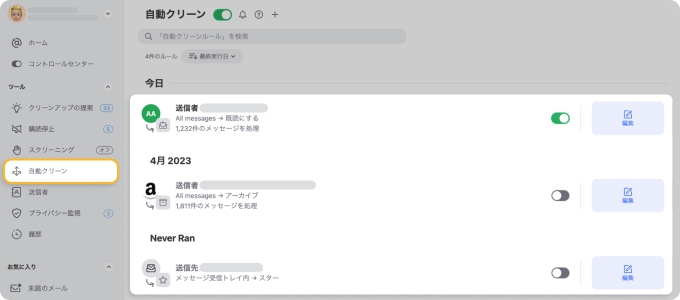
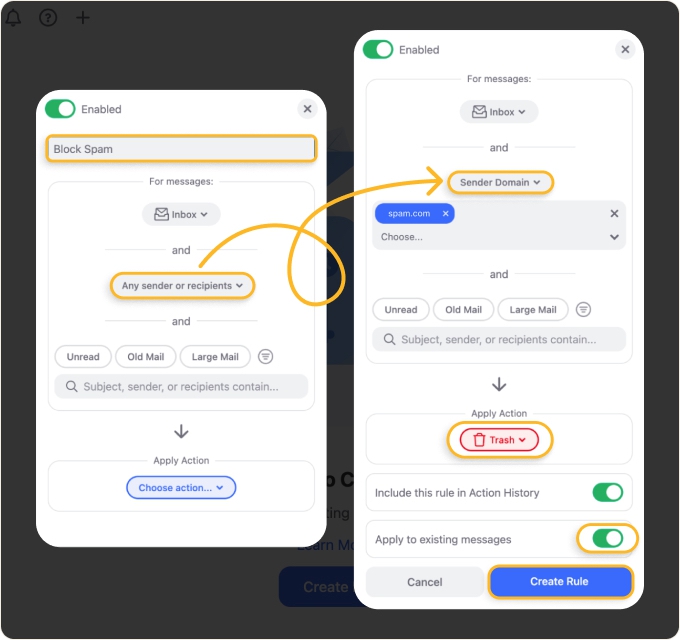
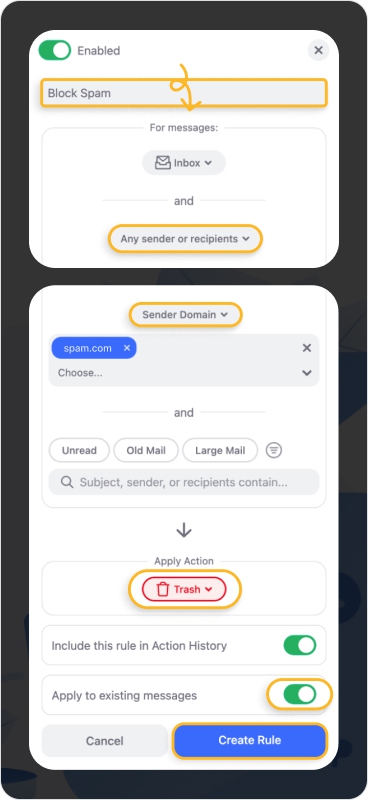
Clean Email の場合:Auto Clean ルールを作成します。送信者のドメインを選択し、アクションをゴミ箱に設定して、既存のメッセージに適用をオンにします。このルールは今後のすべてのメールに自動的に適用されます。
送信者のアドレスが表示されないメール(一部のスパムや自動送信者が使う手口)を受信する場合、標準のドメインブロックは適用されません。その状況に特化した対処法については、送信者不明のメールをブロックする方法をご覧ください。
配信停止とブロックの違い
ブロックと配信停止は目的が異なります。ブロックは送信者からの今後のメールを迷惑メールフォルダやゴミ箱に振り分けますが、その送信者のメーリングリストからあなたのアドレスを削除するわけではありません。送信者は送り続けますが、あなたがそのメッセージを目にしなくなるだけです。
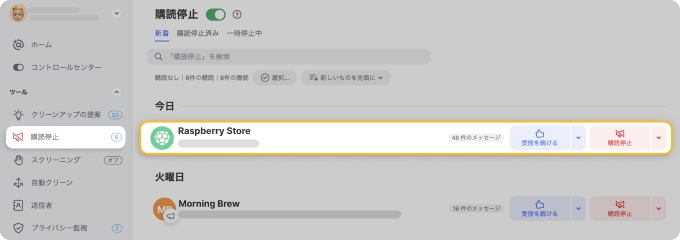
配信停止は実際にリストからあなたを削除します。そのため、自分で登録したニュースレターやマーケティングメール、その他の購読については、配信停止のほうが適した選択肢となります。
Clean Email には、購読ベースのメールを識別し、複数の送信者からのメールを一括で配信停止できる Unsubscriber 機能があります。配信停止ボタンを押すと、アプリが配信停止リンクをたどり、必要なフォームをあなたに代わって入力します。
よくある質問
メールをブロックすると何が起こりますか?
メールアドレスをブロックすると、その送信者からの今後のメッセージは、プロバイダーに応じて自動的に迷惑メールフォルダまたはゴミ箱に振り分けられます。プロバイダーごとの内訳については、このページ上部の表をご覧ください。これらのメールの通知は届かなくなり、送信者にはブロックされたことは通知されません。
ブロックしたメールはどこに行きますか?
これはプロバイダーによって異なります。Gmail と Yahoo はブロックしたメールを迷惑メールに振り分けます。Outlook は迷惑メールフォルダーに振り分けます。iCloud.com のルールはブロックしたメールをゴミ箱(サーバー側)に振り分けます。Mac の Apple Mail の「連絡先をブロック」はメッセージにマークを付け、設定に応じてゴミ箱に移動する場合があります。ほとんどのプロバイダーは、迷惑メールフォルダのメッセージを 30 日後に自動削除します。
ブロックした送信者からなぜまだメールが届くのですか?
よくある原因は 2 つあります。1 つ目は、送信者が新しいアドレスに切り替えた可能性です。ブロックは対象とした正確なアドレスにのみ適用され、その人物自体には適用されません。その解決策は、送信者のドメインをブロックすることです。2 つ目は、アカウントレベルではなくメールアプリ(Apple Mail や Outlook のデスクトップ版)内で送信者をブロックした場合、ブロックはメールがサーバーによってすでに配信された後にデバイス上で実行されるため、アプリが起動していないと回避されてしまう可能性があります。最も確実にブロックするには、プロバイダーの Web インターフェースやアカウントレベルのルール(iCloud.com のルール、Gmail のフィルタ、Outlook の迷惑メール設定)を使用してください。
相手は自分がメールをブロックしたことを知りますか?
いいえ。送信者をブロックリストに追加しても、相手に通知が送られることはありません。相手のメールが単にあなたの受信トレイに表示されなくなるだけです。相手に知らせたい場合は、ブロックする前に直接メッセージを送る必要があります。
気が変わった場合、どうやってブロックを解除しますか?
メールプロバイダーの設定に移動し、ブロックした送信者のリストを見つけて、アドレスを削除します。Gmail:設定 → フィルタとブロック中のアドレス。Outlook:設定 → メール → 迷惑メール。Yahoo:設定 → その他の設定 → セキュリティとプライバシー → ブロックしたアドレス。iPhone の Apple Mail:設定 → メール → 指定した差出人。iCloud.com:メール → 歯車アイコン → 設定 → ルール。