


Key Takeaways
- Achieving inbox zero is realistic if it includes a layered maintenance architecture.
- Inbox zero works when treated as a decision system, but fails when the effort outweighs the benefits.
- Mobile email makes inbox zero harder to reach due to reactive checking and half-processed messages.
- There are certain roles where inbox zero is a better fit than others.
- Inbox zero can be accomplished more successfully with an inbox zero app supplement for advanced automations like Clean Email.
- If inbox zero falls apart, perform a reset instead of giving up.

Does Inbox Zero Mean an Empty Inbox?
The phrase “inbox zero” implies reaching an empty inbox — a zero email inbox. And while some people may use it in its literal sense, the more useful strategy means to spend zero time and energy on your inbox.
By making a decision on each email that arrives, whether manually or with automations, and employing a maintenance system, you can achieve and maintain inbox zero.
Is Inbox Zero Worth It?
The inbox zero method can certainly be worth it if done effectively to reduce stress, email decisions, and reactive inbox checking.
Is Inbox Zero Realistic?
Yes, inbox zero is realistic if it includes a maintenance system. Performing a cleanup session is part of reaching inbox zero, but is not the main component.
➡️ Check out our quick tips on how to master the Inbox Zero Method in your email provider and using the Clean Email ultimate inbox zero tool.
Why the Inbox Matters
We all know that email is a common form of communication, especially prevalent in professional environments. But oftentimes, its perception of importance leads to lost productivity and compromised well-being.
A study conducted jointly by the Department of Informatics, University of California, Irvine along with Microsoft Research and Media Lab found that users check their email approximately 11 times per hour and 84-percent of users keep their inbox displayed at all times.
Furthermore, “Loss of productivity with email use has been explained as due to the time spent continually monitoring email, taking time away from other activities.”
Another study published on Frontiers in Psychology found that although the consequences of high email load aren’t completely understood yet, it “has been associated with impaired well-being because emails impose specific demands, disturb the workflow, and thereby overtax individuals’ action regulation toward prioritized goals.”
Bottom line: The inbox affects productivity and well-being enough to deserve attention, but not obsession.
The Case for Inbox Zero
Inbox zero works when your mailbox is treated as a decision system, not an open-ended pile of emails. And of course, inbox zero has its benefits.
- Reduced cognitive load: Spending zero energy worrying about your inbox lets you relinquish feelings of needing to constantly check and handle your emails.
- Clearer priorities: Performing inbox triage and setting up automations cleans out the low-priority messages providing a clearer scope of high-priority emails.
- Less missed-message anxiety: Reducing the overwhelming feeling of missing emails can be curbed using a decision-making system and with automations.
- Faster email sessions: Applying the 4 D’s to each email that arrives helps you make fast decisions and spend the remainder of your email sessions only on messages that require action.
The Case Against Inbox Zero
Inbox zero fails when the effort of maintaining the system outweighs the benefits of using it. Like any other email management method, inbox zero has its disadvantages.
- Setup time: Clearing the backlog, reducing the inflow, and creating automations all take time; especially in the early stages of the system setup.
- Compulsive checking risk: Changing your habit from checking your inbox at will to working on emails only during designated times can be a difficult adjustment and requires willingness.
- Poor fit for some roles or inbox volumes: Inbox zero isn’t an overarching solution. There are some cases, such as workers with a high inbox volume, where the strategy isn’t the right answer.
- Manual systems that collapse during busy weeks: Performing manual inbox maintenance can easily be overlooked or simply pushed aside when you have more important commitments to meet.
Why Inbox Zero Fails
Along with effort outweighing benefits are other reasons that the inbox zero system can fail.
- Clearing the inbox does not stop tomorrow’s emails
- Complex filing systems slow triage until people stop using them
- Opening emails from notifications without deciding creates half-processed messages
Inbox zero takes a commitment lasting more than a single day. Many people aren’t prepared to commit to it long-term and stop using it after a short time.
Many become so set in their email filing system that they aren’t willing to change it. When inbox triage slows them down because of it, they give up rather than adjusting their system.
This is one of the most common pitfalls. People are so used to jumping in when they see an email alert that they simply look at the message rather than making a decision on it. This can cause emails to pile up and the overall system to fail.
Inbox Zero vs. Other Inbox Philosophies
As you probably already know, inbox zero isn’t the only strategy for managing email. Rather than simply list the inbox zero pros and cons, here’s how it compares to a few other inbox management methods.
| Inbox Zero | Inbox Infinity | Inbox Elsewhere | AI Inbox | |
|---|---|---|---|---|
| Concept | Process each message to a decision. | Accept that the inbox will always contain messages. | Move actionable work into a task manager or project system. | Use AI to summarize, prioritize, or draft replies. |
| Pros | Reduces stress, improves organization, no missed emails | Saves time, reduces stress, sets recipient boundaries | Less distractions, more organization, teachable filters | Saves time, integrates with workflows, consistent messages |
| Cons | Requires commitment, risk of rushed communications, daily reactive triage | Risk of missing emails, difficulty with focus, adverse recipient reception | Risk of missing notifications, requires maintenance, inconsistency | Risk of impersonal messages, can’t stop recurring emails or reduce inflow, can’t unsubscribe |
Who Inbox Zero Works For — and Who It Does Not
As mentioned earlier, inbox zero can work but isn’t for everyone. If you’re wondering whether or not it’s worth a try, here are a few roles where the system is a good fit as opposed to a bad fit.
Good Fit:
- Managers who make quick decisions and often delegate during triage
- Workers who have daily tasks based on emails
- Professionals who thrive on structure and prioritization
Poor Fit:
- Researchers who need lengthy and strict concentration before handling an email
- Teams who share an inbox and need team-wide visibility
- People who need email to create a relationship with back-and-forth communications
The 5-Layer Maintenance Architecture
A solid and successful inbox zero system is built on a multi-layer structure. Each layer serves a specific purpose with the final goal in mind. It begins with inflow reduction and ends with a reset plan.
Layer 1: Reduce Inflow
An important first step in achieving inbox zero is reducing the inflow of emails. You can do this by stopping recurring low-value messages and other inbox noise.
- Unsubscribe from recurring unimportant emails
- Block or mute noise senders
- Screen new or unknown senders
- Reduce newsletters, promotions, and automated notifications
Keep in mind that an inbox zero system can’t survive or be successful if recurring emails continue to disrupt your inbox.
Layer 2: Automate Recurring Decisions
Spending time on the same email decisions over and over is a waste of energy and can result in an inbox zero fail. By automating your action choices, you can create a maintainable system that works long-term, not just today.
Start by setting up rules for senders and categories. This can include flagging for follow-up or archiving.
Next, create automated handling for receipts, newsletters, status updates, and notifications. This can include moving to a folder or deleting.
The point to automating recurring decisions is that when these emails arrive, their fate is already decided.
Layer 3: Use AI Only for High-Context Messages
Using the AI tools that email providers supply, like Gemini in Gmail and Copilot in Outlook, you can get help with messages where AI thrives.
- Thread summaries: Receive summaries of lengthy conversations without having to read each email in the thread.
- Suggested replies: Obtain recommendations for the best ways to reply to an email including the tone for your recipient.
- Drafting help: Get assistance when composing email drafts that include the essential details.
- Prioritization signals: Learn which incoming messages are most important, such as those with deadlines or calls to action, as AI evaluates an email’s content, frequency, and relevance.
Remember, AI isn’t useful for building or sustaining a maintenance system but for reviewing, reading, and replying to complex emails that survive your automations.
Layer 4: Batch the Rest
Eliminating the constant checking of your emails is another part of inbox zero. You should manage your messages in batches using predetermined sessions and timeframes. This reduces context switching and stress while promoting focus and concentration.
Instead of inbox browsing, set up one to two scheduled email sessions per day at 20 to 30 minutes each with fixed end times.
One handy way to stick to this is to use time blocking for solidifying these sessions on your calendar. This can keep you on task as well as let others know you’re busy.
Layer 5: Reset When the System Breaks
No matter how well you maintain your inbox zero system, unforeseen circumstances can pop up that result in a reset. The goal here is to restore the system, not punish yourself for falling behind — and keep in mind that important messages usually resurface.
After a vacation, an illness, deadlines, or busy periods, do not process everything individually. Simply archive the older backlog and restart from near-zero. Be confident that you will get back on track and return to your well-built system.
For more on specific providers, look at our guides for inbox zero in Gmail and how to achieve Outlook inbox zero.
The Mobile Problem
If you check your inbox on your mobile device, you’re like most others. However, there is an issue doing this when executing an inbox zero plan.
Mobile email reviews can make it harder to achieve inbox zero because it encourages reactive checking, glancing without deciding, and half-processed messages.
Between receiving notifications of new emails, reading messages from the lock screen, and marking emails as read without reacting to them, you’re doing the opposite of the inbox zero concept.
If you’re using mobile email as a stress behavior, you can still work toward your inbox zero system by implementing a mobile maintenance rule.
The Mobile Maintenance Rule
When it comes to mailbox checking on mobile, it should be used for obvious decisions, not for thinking through each email.
Consider the following components of a good mobile maintenance rule:
- Do not browse your inbox from your mobile device.
- Use only swipe actions in your message list including archive, delete, snooze, and flag.
- Reply from mobile only if it takes under two minutes to do so.
- Wait for your scheduled email session for anything requiring thought like attachments or context.
Again, bad mobile email habits can keep you from reaching your zero inbox strategy goals due to:
- Opening emails from notifications without deciding
- Marking messages as read just to clear badges
- Using the archive to hide unresolved emails
- Checking email as a stress behavior
Mobile Escape Hatches
To help you make those quick email decisions on mobile, here are a handful of common situations and the recommended actions to take.
| Situation | Mobile Action |
|---|---|
| Email not needed | Archive |
| Low value | Delete / Trash |
| Needs action later | Snooze |
| Needs a real reply | Flag or leave unread |
| Unknown sender / noise | Block during the next cleanup session |
What to Do When Inbox Zero Falls Apart
Rather than let a full inbox collapse during busy periods or time away, implement a reset protocol. While there are various ways to set this up, here is a two-step suggestion that was briefly mentioned earlier.
Step 1: Perform a sweep where you archive all emails older than 30 days. If any email in this batch was important, the sender would have likely followed up.
Step 2: Triage the remaining messages from the last 30 days. Use the 4 D’s to process each email: Do, Defer, Delegate, Delete.
You can then return to your email sessions and maintenance routine as before. Remember, you spent time creating a workable system, so don’t give up on it — just reset it.
When the System Needs Automation to Survive
Inbox zero often fails because recurring decisions remain manual. Automations make the inbox zero system sustainable.
This is when adding Clean Email to your maintenance layers help to reduce the inflow and automate those recurring decisions at the same time.
The Auto Clean feature automates repeating email decisions. This means that you don’t have to manually handle the same sender or category again. You simply set up inbox rules once and let Auto Clean take care of the rest.
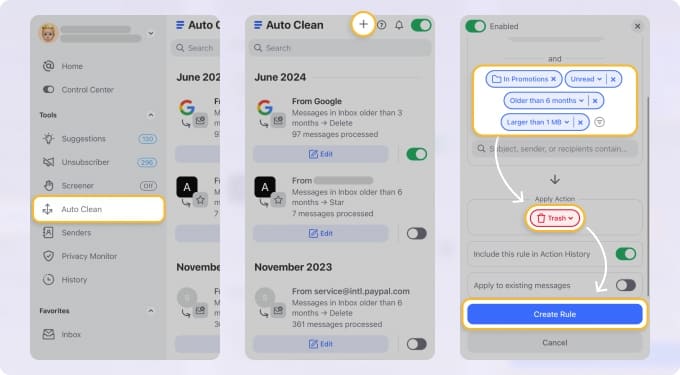
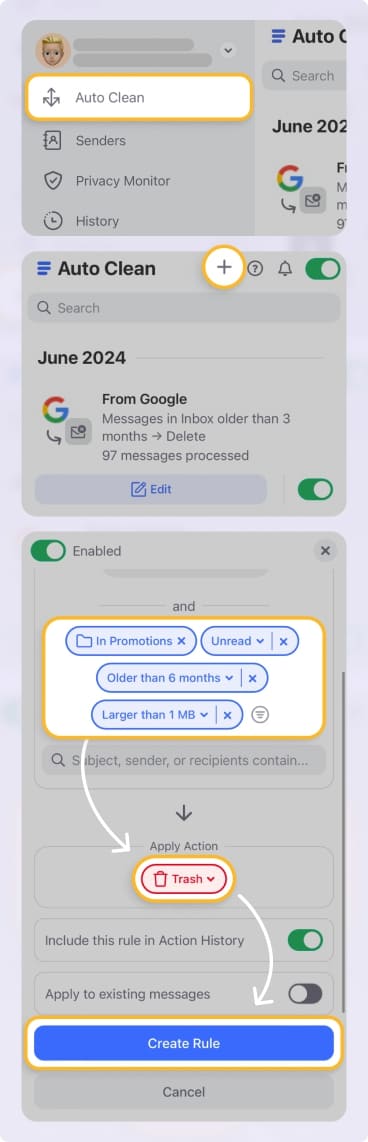
Here are a couple of helpful rules:
- Auto Clean — Keep Newest: Keeps only the latest one to seven messages (your choice) from a sender or category and directs older ones to the Trash. This is useful for newsletters, status updates, and recurring emails where only the newest message matters.
- Auto Clean — Delete: Permanently removes email types and categories that you’re certain you won’t need again. Rather than sending messages to the Trash, the Delete action permanently removes them (and the action can’t be undone).
Other useful Clean Email automations for maintaining inbox zero include:
Unsubscriber: Reduces recurring marketing/newsletter volume and blocks future messages at the delivery level. You can also use Unsubscriber to unsubscribe in bulk rather than one email at a time.
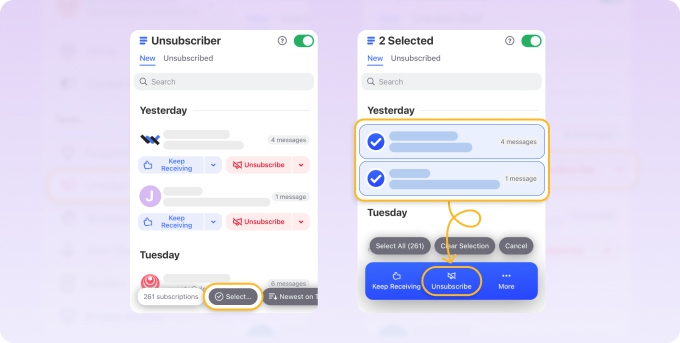
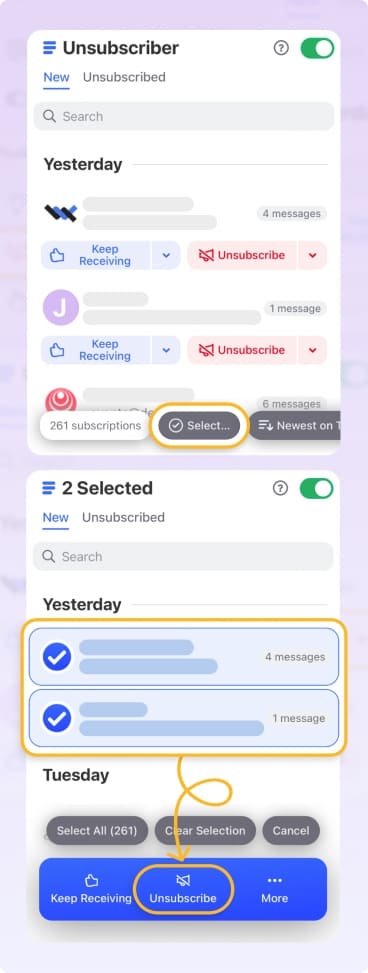
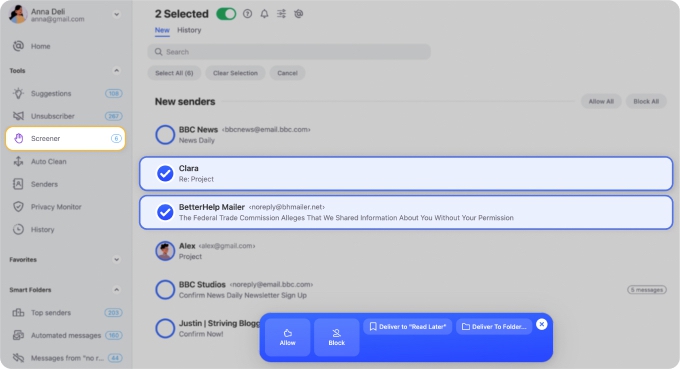
Screener: Isolates first-time and unknown senders in a designated spot. You then use Screener to review the emails before they reach your inbox and Allow or Block future messages from each sender.
Read Later — Summary Digest: Keeps newsletters and long reads out of your main inbox and then sends you a daily or weekly roundup for a quick and comprehensive summary.
How Long Does It Take to Achieve Inbox Zero?
There is no set “time it takes” to achieve inbox zero. But you can break down the components into smaller chunks to get an idea based on your own inbox volume.
- Cleanup: 1 to 3 hours depending on volume and available bulk actions for archiving and deleting.
- Maintenance setup: 2 to 4 hours for inflow reduction and automation creation.
- Daily habit: 20 to 30 minutes for daily email sessions.
Remember, you can speed up some processes with supplementary tools like Clean Email that help with bulk actions for archiving, deleting, and unsubscribing.
The Verdict: Does Inbox Zero Work?
Inbox zero works if it reduces inbox monitoring behavior and decision fatigue, but it fails if it becomes a manual obsession or the effort outweighs the benefits.












