Key Takeaways
- Gmail’s Mute feature removes an email thread from your Inbox, applies a Muted label, and provides access to it via All Mail.
- Muting an email in Gmail archives the entire conversation.
- The Mute feature works on message threads, not email senders.
- To mute emails from a certain sender, you can create a Gmail filter to skip the Inbox and mark the message as read.
- Gmail doesn’t provide an option to disable notifications for specific senders.

What Does Mute Mean in Gmail?
When you mute an email in Gmail, this removes the conversation from your Inbox by archiving it and attaches a Muted label. You can review muted conversations in All Mail or by searching for is:muted.
Replies to muted threads do not trigger new email notifications unless you are the only recipient, part of the addressed Google Group, or are added to the To or Cc field.
Gmail’s Mute feature is useful for lengthy conversations with many back-and-forth replies or email threads that you no longer want to actively follow.
Mute vs. Archive vs. Snooze vs. Block
Because Gmail provides various features for managing emails and senders, it’s important to understand the differences so that you use the correct action. For instance, should you mute or block a sender in Gmail?
Here is a comparison of mute, archive, snooze, and block in Gmail.
| Mute | Archive | Snooze | Block | |
|---|---|---|---|---|
| What does the feature do? |
| Moves the email out of the Inbox |
|
|
| Do future replies return to the Inbox? | No, unless sent only to you, to your Google Group, or you’re added to the To or Cc field | Yes | Not until the timer goes off | No, they go to Spam |
| Can the sender still email you? | Yes | Yes | Yes | Yes, there’s no signal they’ve been blocked |
| Are emails deleted? | No | No | No | Yes, after 30 days in the Spam folder |
| Are notifications stopped? | Yes | Not reliably, if a reply is received, the standard new email notification is triggered | Yes, until the timer goes off | Yes |
| Best use case | Conversations you don’t need to follow or lengthy/noisy email threads | Emails you no longer need but don’t want to delete such as emails used for reference or completed tasks | Emails you want to handle later or action items requiring a reminder | Emails from unwanted/harassing senders or contacts you want to stop receiving emails from |
How to Mute a Conversation in Gmail
Now that you better understand the Gmail mute meaning, you can use the feature on your desktop or in the Gmail app on your mobile device.
On Desktop
- Visit Gmail and log in.
- Select or open the email you want to mute.
- Tap More (three dots) in the top toolbar.
- Choose Mute.
💡 Tip: You can also use the M keyboard shortcut, right-click a message and pick Mute, or mark the checkboxes for multiple emails and select More → Mute.
On Android
- Launch the Gmail app on Android.
- Open the email you want to mute.
- Tap More (three dots) in the top toolbar.
- Choose Mute.
💡 Tip: For multiple messages, long-press an email in your message list, select the emails, and tap More → Mute.
On iPhone and iPad
- Launch the Gmail app on iPhone or iPad.
- Open the email you want to mute.
- Select More (three dots) in the top toolbar.
- Choose Mute.
💡 Tip: For multiple messages, long-press an email in your message list, select the emails, and tap More → Mute.
How to Unmute Emails in Gmail
Muting an email in Gmail doesn’t have to be a permanent action. If you want to rejoin the conversation or keep track of active replies, you can unmute an email.
To find and unmute an email on both desktop and mobile:
- Enter is:muted in the Search bar to find the message.
- Select the email thread you want to unmute.
- Choose More → Unmute in the top toolbar.
How to Mute Emails From a Sender in Gmail
As described earlier, when you mute an email in Gmail, this mutes the conversation/thread not the sender. Gmail does not currently offer a sender-level mute feature.
If you’d like to mute Gmail notifications from a specific sender, you can create an automated filter. This allows you to hide future emails from your Inbox without deleting, unsubscribing, or blocking the sender.
To create this filter:
- Open an email from the sender.
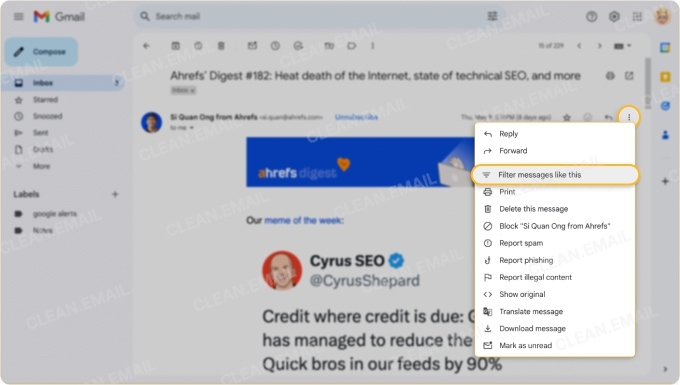
- Select More (three dots) → Filter messages like this on the top right of the email.
- Choose Create filter.
- Check the boxes for:
- Skip the Inbox (Archive it)
- Mark as read
- (Optional) Apply the label
- (Optional) Also apply filter to X matching conversations
- Choose Create filter.
📌 Note: You can’t currently create filters in the Gmail mobile app; it’s a desktop-only feature.
How to Stop Notifications From One Sender
Maybe you’d like to mute Gmail notifications from a certain sender but not necessarily mute the email thread. Although you won’t currently find per-sender notification controls in Gmail, there are a few workarounds you can use:
➡️ Create a filter to archive the emails. As explained above, you can set up a Gmail rule to skip the Inbox and automatically archive incoming emails from a certain sender. This stops new message notifications (unless a reply is received to an archived email).
➡️ Turn off Android label notifications in Gmail. If you automatically apply a label to all emails from a particular sender, you can disable notifications for that label in Gmail on Android.
In the Gmail app, go to Settings → [account] → Manage labels. Choose the label and uncheck Label notifications.
➡️ Use Do Not Disturb or Focus modes or change alert settings. Android provides Do Not Disturb modes and Apple offers Focus modes to stop notifications during scheduled times and allow exceptions for only those people and apps you want. Both platforms also let you enable/disable your Gmail notifications and adjust general device alerts.
⚠️ Be careful when using these modes and settings to stop notifications for Gmail senders because they can affect alerts for other senders and apps as well.
Remember, if you mute a conversation in Gmail, notifications may still be triggered if you are the sole recipient, belong to the directly addressed Google Group, or are added to the To or Cc field.
A Better Way to Mute Senders With Clean Email
As an alternative to the above less than ideal methods for muting a sender and stopping unwanted messages, consider using a supplemental tool like Clean Email.
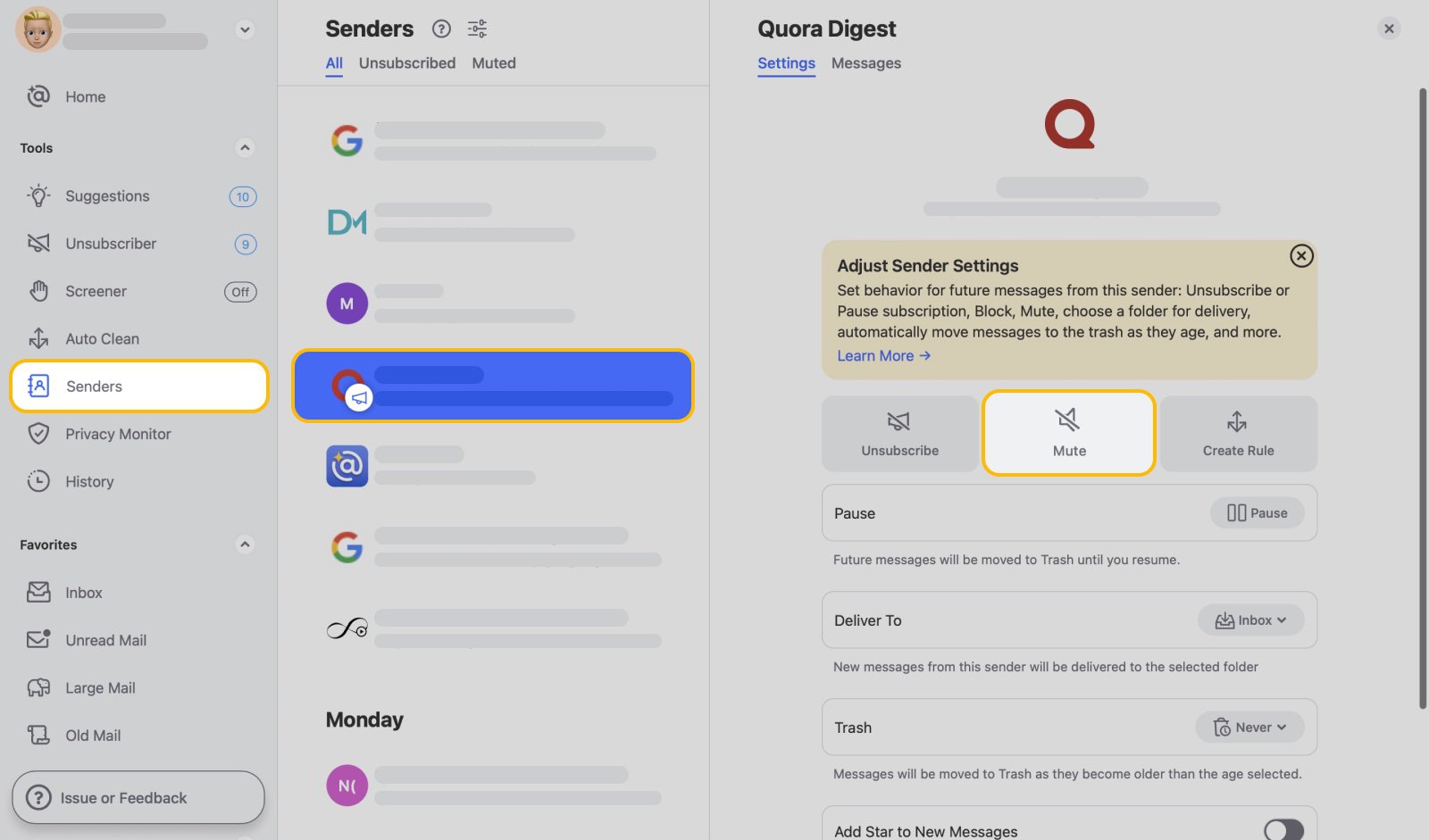
You can create reversible rules for muting a particular sender that can be set up and managed on any device. If you want to silence any sender without the risk of muting others and missing important messages, try the Clean Email app.
💡 Tip: Clean Email also provides the Screener feature if you’re interested in reviewing and blocking emails before they reach and clutter your inbox.
Final Thoughts
If you’ve been wondering how to mute someone on Gmail, you should now understand the difference between muting an email thread and silencing a sender, along with ways to do both.
And keep in mind that complementary tools like Clean Email can help enhance these types of Gmail features on any device.
FAQs
What happens when you mute an email in Gmail?
Gmail archives the entire conversation, applies a Muted label, and keeps future replies out of your Inbox. You can still find the thread in All Mail or by searching is:muted.
Is mute the same as block in Gmail?
No. Mute silences a single conversation, and the sender can still reach you normally in new threads. Block applies to the sender and sends all their future emails to Spam, where they're deleted after 30 days.
Does muting in Gmail stop notifications?
Yes, for replies in that thread. The exceptions are when you're the only recipient, you're part of the directly addressed Google Group, or you're added to the To or Cc field.
Can I mute notifications from one sender only?
Not directly, because Gmail has no per-sender notification setting. As a workaround, create a filter that skips the Inbox and marks their messages as read, or apply a label and turn off notifications for that label in the Gmail Android app.
Does muting delete emails?
No. Muted conversations are archived, not deleted, and you can unmute them at any time.
Can I mute a sender in the Gmail mobile app?
No. You can mute conversations in the app, but sender-level filters can only be created in Gmail on desktop. Once created, a filter applies to your account on every device.
Can Gmail mute a sender on one device but not another?
Only partly. Mutes and filters work at the account level, so they apply on all devices. For device-specific control, you can turn off label notifications in the Gmail Android app, or use that device's notification settings, Do Not Disturb, or Focus modes. Keep in mind that device settings can also silence other senders and apps.