


What is an Unsubscribe Button?
With the Gmail Unsubscribe button, also known as the Gmail unsubscribe tool, you can quickly and easily stop receiving newsletters, shopping promotions, marketing emails, and similar messages.
You can find it at the top of an email in your inbox.
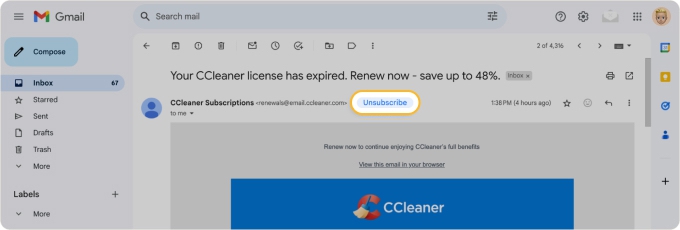
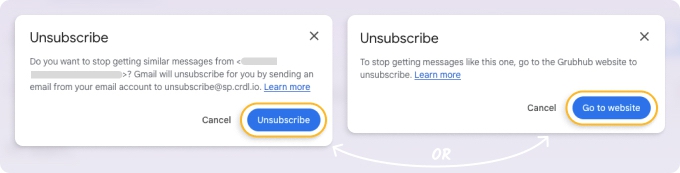
When you click the button, you see a pop-up message and can then unsubscribe from emails on Gmail one of two ways:
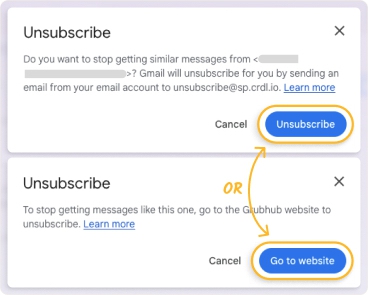
- Click Unsubscribe to have Gmail automatically send a form to the sender requesting removal of your email address from their mailing list.
- Click Go to Website to visit the company’s website and complete the unsubscribe process.
If you don’t see the one-click Unsubscribe in Gmail where you expect, it may take receiving a few emails from the sender for Gmail to recognize and display the button. Plus, it can depend on the unsubscribing methods provided by the sender whether Gmail shows the button or not.
GOODBYE TO INBOX CLUTTER
Unsubscribe from unwanted emails instantly with one click.
Get started for FreeGmail Unsubscribe Link in the Email
Besides the button at the top, you can also opt out of email subscription using a link within the email content. You can find that link, usually labeled as "Unsubscribe," toward the end of the message.
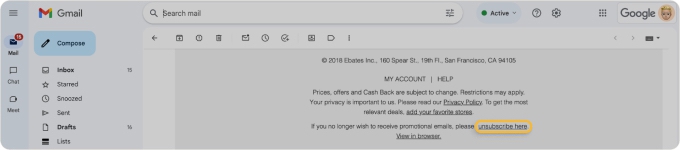
When you click this link within the email body, you’ll be guided to the company’s website to opt out there.
⚠️ Warning: If the email looks suspicious or you’re unfamiliar with the sender, it’s safer to use either the Gmail Unsubscribe button or Unsubscriber in Clean Email rather than the unsubscribe link in the message.
Does Gmail Really Unsubscribe You?
When you use the Unsubscribe button in Gmail, you should be removed from the sender’s mailing list. And as mentioned earlier, the unsubscribing process can take a few days.
However, if the link provided by the sender has unusual wording or formatting, Gmail may not recognize it correctly. In this case, you may not see the Unsubscribe option at all.
Moreover, Gmail relies on the sender to honor the request, and some less reputable senders may ignore it or take time to process it. So while Gmail initiates the process, it doesn't have full control over whether the sender actually removes you from their list.
If you continue to receive emails from a company after using the Unsubscribe link in Gmail, you can report them as spam.
How Clean Email Can Help
If the Google unsubscribe tool doesn't work or you want to manage subscriptions in bulk, Clean Email's Unsubscriber tool can handle it. The app automatically sends opt-out requests and moves unwanted messages to Trash, even when senders ignore the request.
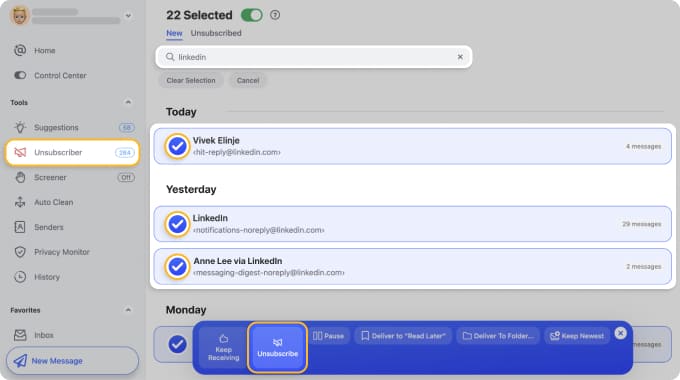
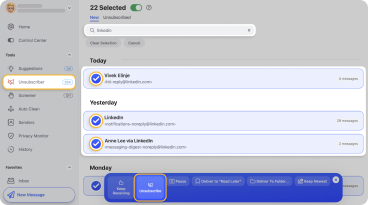
Here's what makes it different from Gmail's built-in option:
- Works even without an Unsubscribe link in the message: Clean Email can unsubscribe you from emails that don't show Gmail's unsubscribe button at all.
- Bulk unsubscribe: select multiple subscriptions and opt out of all of them at once, instead of going email by email.
- Moves messages to Trash automatically: no need to mark emails as spam or wait for senders to process your request.
- Resubscribe anytime: changed your mind? You can undo it with one click.
Beyond unsubscribing, Clean Email is a full inbox management tool: it helps you organize, automate, and clean up your mailbox.
The app is available on the web, as well as on Mac desktop and mobile, and it's built with privacy in mind, so your data is never sold or used for advertising.
💡 Learn more about how to unsubscribe from all emails in Clean Email.
Conclusion
The Gmail unsubscribe button is a quick way to opt out of unwanted emails. However, it depends on the sender including a valid List-Unsubscribe header, and there's no guarantee they'll honor the request.
If the button doesn't appear or doesn't work, try using the unsubscribe link in the email body, or explore a dedicated unsubscribe tool like Clean Email to manage all the subscriptions at once.
FAQs
Is it safe to hit the unsubscribe button on emails?
The Gmail Unsubscribe feature, along with similar options offered by other email applications, are safe to use. Where you should take caution is when clicking an Unsubscribe link within the email content. This can lead to a potentially dangerous website or confirm to the sender that you have a valid email address.
How does Gmail unsubscribe work?
Gmail's unsubscribe feature either sends an automatic unsubscribe request to the sender or redirects you to the sender's unsubscribe page. It depends on the email's "List-Unsubscribe" header, and the sender must process the request for it to take effect.
How do I add an unsubscribe button to Gmail?
You can't directly add an unsubscribe button to Gmail. However, Gmail automatically shows an "Unsubscribe" option next to the sender's email address if the sender includes a valid "List-Unsubscribe" header in their emails.
What is the List-Unsubscribe-Post header?
The "List-Unsubscribe-Post" header is an email standard that allows email service providers to send requests via HTTP POST to the sender’s server. It provides a more reliable way for users to opt out of mailing lists directly from their email client.
What is the List-Unsubscribe header?
The "List-Unsubscribe" header is an email standard that provides a URL or mailto link, allowing users to easily opt out of mailing lists with a single click or email. While "List-Unsubscribe-Post" automates the process via a server request, "List-Unsubscribe" offers a manual method, either by clicking a link or sending an email.












